
Dental Google Business Profile Setup: Complete Guide
Key Takeaways
- •70% of dental leads come via phone calls from GBP listings
- •Map Pack = prime real estate — appears in 93% of local searches
- •Complete profiles get 7x more trust than incomplete ones
- •100+ photos = 520% more calls than profiles with fewer than 5
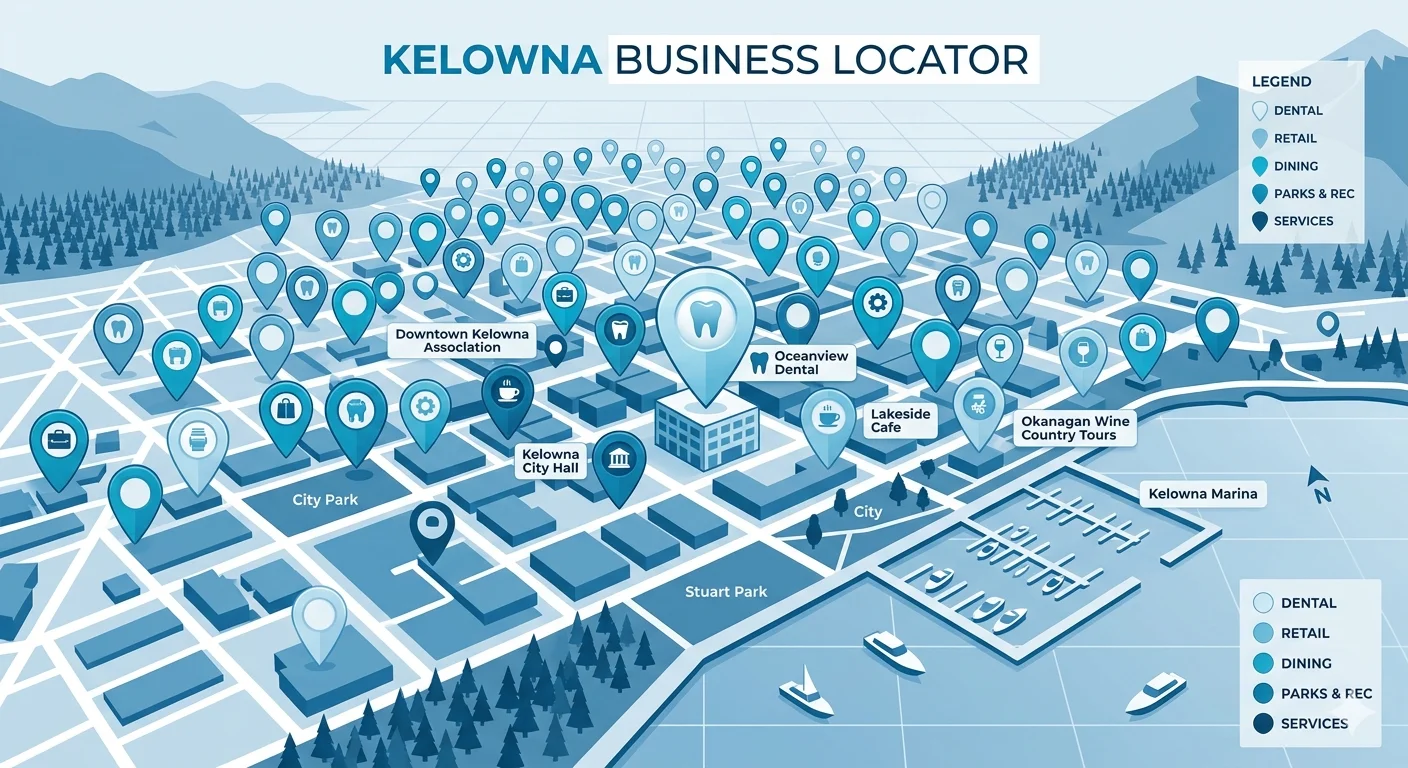
Your Google Business Profile might be more valuable than your website. Seriously.
When patients search "dentist near me," the Map Pack (those three businesses at the top with pins) gets most of the clicks. Your Google Business Profile determines whether you show up there.
Most dental practices have a GBP. Few have an optimized one. The difference? Showing up in the Map Pack versus getting buried on page three.
This guide walks through every step of setting up and optimizing your dental practice's Google Business Profile, from initial claim to ongoing management.
Need professional GBP management?
Learn about our dental marketing services →Why GBP Matters for Dentists
Local search drives dental patient acquisition. Here's why GBP is the centerpiece:
GBP vs. Your Website
Your website is important for conversions and detailed information. But many patients never visit it. They:
- Search "dentist near me"
- See your GBP in the Map Pack
- Check your rating and reviews
- Click "Call" directly from the listing
Your website didn't enter the equation. The GBP handled discovery, credibility, and conversion entirely.
This is why GBP optimization delivers the fastest ROI for dental practices. You can improve rankings and leads faster than any other marketing channel.
Claiming & Verifying Your Profile
Step 1: Find or Create Your Listing
- Go to google.com/business
- Sign in with a Google account (use your practice email if possible)
- Click "Manage now"
- Search for your practice by name and address
If your practice appears: Click on it and select "Claim this business" or "Request access" if someone else has claimed it.
If your practice doesn't appear: Click "Add your business to Google" and follow the prompts to create a new listing.
Step 2: Verification Options
Google needs to confirm you own/manage the practice. Options vary but typically include:
- Postcard: Google mails a postcard with a PIN to your address. Takes 5-14 days. Enter the PIN when it arrives.
- Phone: Google calls or texts a code to your business phone. Instant verification.
- Email: Sometimes available if Google can confirm ownership via existing Google accounts.
- Video: Record a video showing your practice sign, address, and interior. Takes 1-3 days for review.
Verification Tip:
If postcard verification fails or takes too long, contact Google Business Profile support directly. Healthcare businesses sometimes qualify for expedited verification.
What If Someone Else Claimed It?
If a previous owner, marketing agency, or Yellow Pages claimed your profile:
- Click "Request Access" on the listing
- Fill out the form explaining you own the business
- Google contacts the current manager
- If they don't respond in 7 days, ownership may transfer to you
- For faster resolution, contact the current manager directly if possible
Setting Up Basic Information
Once verified, complete every field. Google favors complete profiles.
Business Name
Use your exact legal business name. Do NOT add keywords like "Best Dentist Calgary" or "Dental Implants". This violates Google's guidelines and can get your profile suspended.
- Correct: Smith Family Dentistry
- Wrong: Smith Family Dentistry - Best Dentist in Calgary - Implants & Invisalign
Address
Enter your complete physical address exactly as it appears on mail. Include suite numbers. Use the same format across all online listings (NAP consistency).
Phone Number
Use a local phone number, not a toll-free number. This reinforces local relevance. If you use call tracking, ensure the tracking number is consistent across listings.
Hours
Enter accurate hours. Update for holidays using the "Special hours" feature. Nothing frustrates patients more than showing up to a closed office when Google said you were open.
Website
Link to your homepage or a dedicated landing page. If you have a page specifically for new patients, consider using that.
Business Description
You get 750 characters. Use them wisely:
- Lead with what makes your practice unique
- Mention services naturally (not keyword stuffing)
- Include your city/area name
- End with a call to action
Example:
"Smith Family Dentistry provides comprehensive dental care for families in Calgary and surrounding areas. From routine cleanings to cosmetic dentistry, dental implants, and emergency care, we offer personalized treatment in a comfortable environment. Our team combines modern technology with gentle care to ensure positive experiences for patients of all ages. Evening and weekend appointments available. New patients welcome: call or book online today."
Choosing the Right Categories
Categories tell Google what searches your practice should appear for. This is one of the most important ranking factors.
Primary Category
Your primary category carries the most weight. For most dental practices, this should be:
- Dentist (general practices)
- Pediatric Dentist (if exclusively pediatric)
- Cosmetic Dentist (if primarily cosmetic)
- Oral Surgeon (if oral surgery focused)
- Orthodontist (if orthodontics focused)
Secondary Categories
Add all relevant secondary categories for services you actively provide:
- Cosmetic Dentist
- Dental Implants Provider
- Emergency Dental Service
- Pediatric Dentist
- Dental Clinic
- Teeth Whitening Service
- Denture Care Center
Important: Only add categories for services you actually offer. Adding "Orthodontist" when you don't do orthodontics can hurt your relevance and lead to poor reviews from mismatched patients.
Adding Dental Services
The Services section lets you list specific offerings. This helps Google match you with specific searches like "dental implants near me."
How to Add Services
- Go to your GBP dashboard
- Click "Edit profile"
- Select "Services"
- Add service categories and individual services
Services to Add
Organize by category. Example structure:
General Dentistry:
- Dental Exams & Cleanings
- Dental X-Rays
- Fillings
- Root Canals
- Tooth Extractions
- Gum Disease Treatment
Cosmetic Dentistry:
- Teeth Whitening
- Dental Veneers
- Dental Bonding
- Smile Makeovers
Restorative Dentistry:
- Dental Implants
- Dental Crowns
- Dental Bridges
- Dentures
Specialty Services:
- Invisalign / Clear Aligners
- Emergency Dental Care
- Pediatric Dentistry
- Sedation Dentistry
Adding Prices
You can optionally add price ranges. This is useful for transparent pricing practices but not required. If your prices vary significantly by case, you may prefer to leave pricing off and discuss during consultations.
Photos That Convert
Practices with 100+ photos get 520% more calls than those with fewer than 5. Photos build trust before patients ever walk in.
Essential Photos (Add These First)
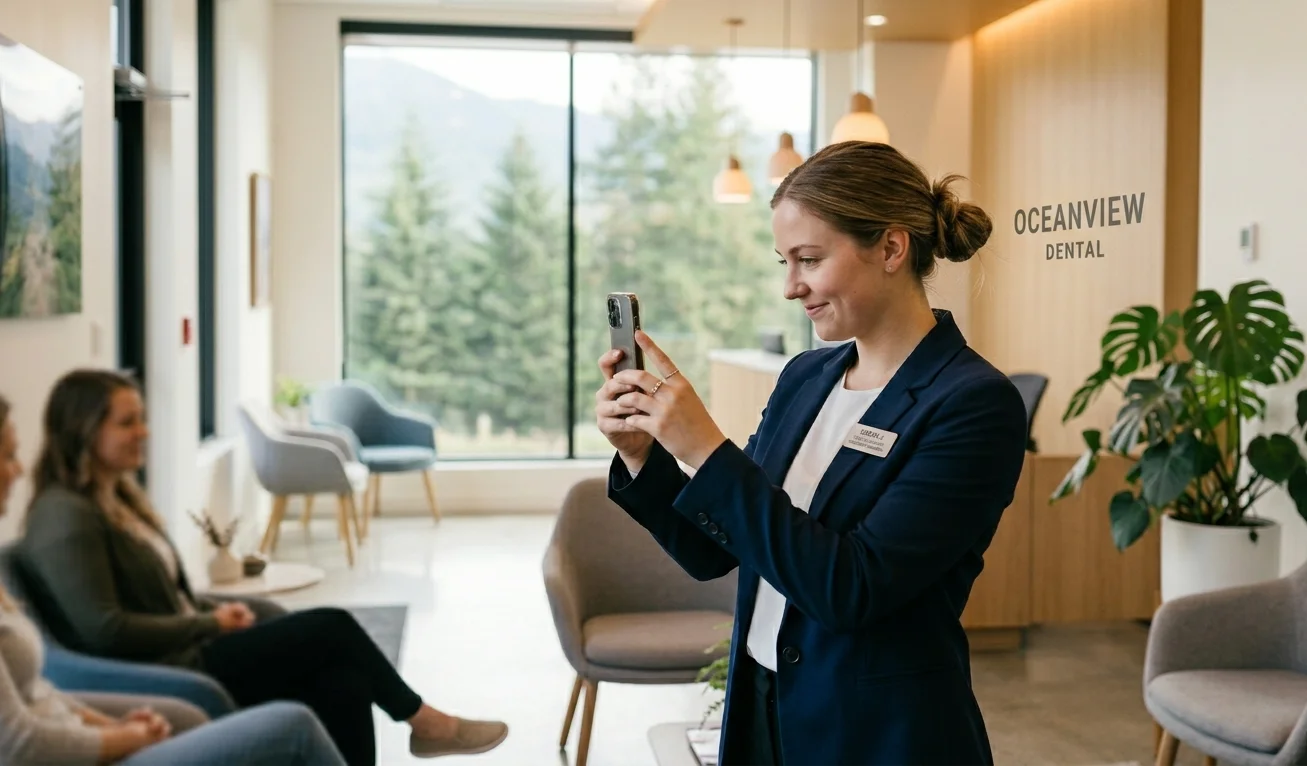
Take authentic photos of your practice for GBP
Additional Photos to Add
- Equipment (demonstrates modern technology)
- Waiting area amenities
- Patient comfort features (TV, headphones, blankets)
- Before/after results (with patient consent)
- Community involvement photos
- Team certifications and awards
Photo Quality Guidelines
- Resolution: At least 720px wide
- Lighting: Well-lit, no harsh shadows
- Focus: Sharp, not blurry
- Real photos: Never use stock photos: Google may remove them
- Update quarterly: Fresh photos signal an active business
Photo Tip:
Professional photography is worth the investment for your GBP. A few hundred dollars in photography can significantly improve first impressions and click-through rates.
Weekly Posts Strategy
Google Business Profile posts appear directly on your listing. They show Google you're active and give patients reasons to choose you.
Post Types
- What's New: General updates, tips, announcements (expires in 7 days)
- Offers: Promotions and specials (include expiration date)
- Events: Open houses, community events (includes date/time)
Content Ideas
- New patient special offers
- Dental health tips (seasonal: back to school, holidays)
- Team member spotlights
- New equipment or services
- Community involvement
- Before/after showcases
- Patient testimonials (with permission)
- Educational content (what happens during a cleaning)
Best Practices
- Post at least once per week
- Include an image with every post
- Add a call-to-action button (Book, Call, Learn More)
- Keep text concise: 150-300 words
- Include relevant keywords naturally
Sample Weekly Schedule
- Week 1: Dental tip or educational content
- Week 2: New patient offer or promotion
- Week 3: Team spotlight or practice news
- Week 4: Before/after or patient testimonial
Review Strategy
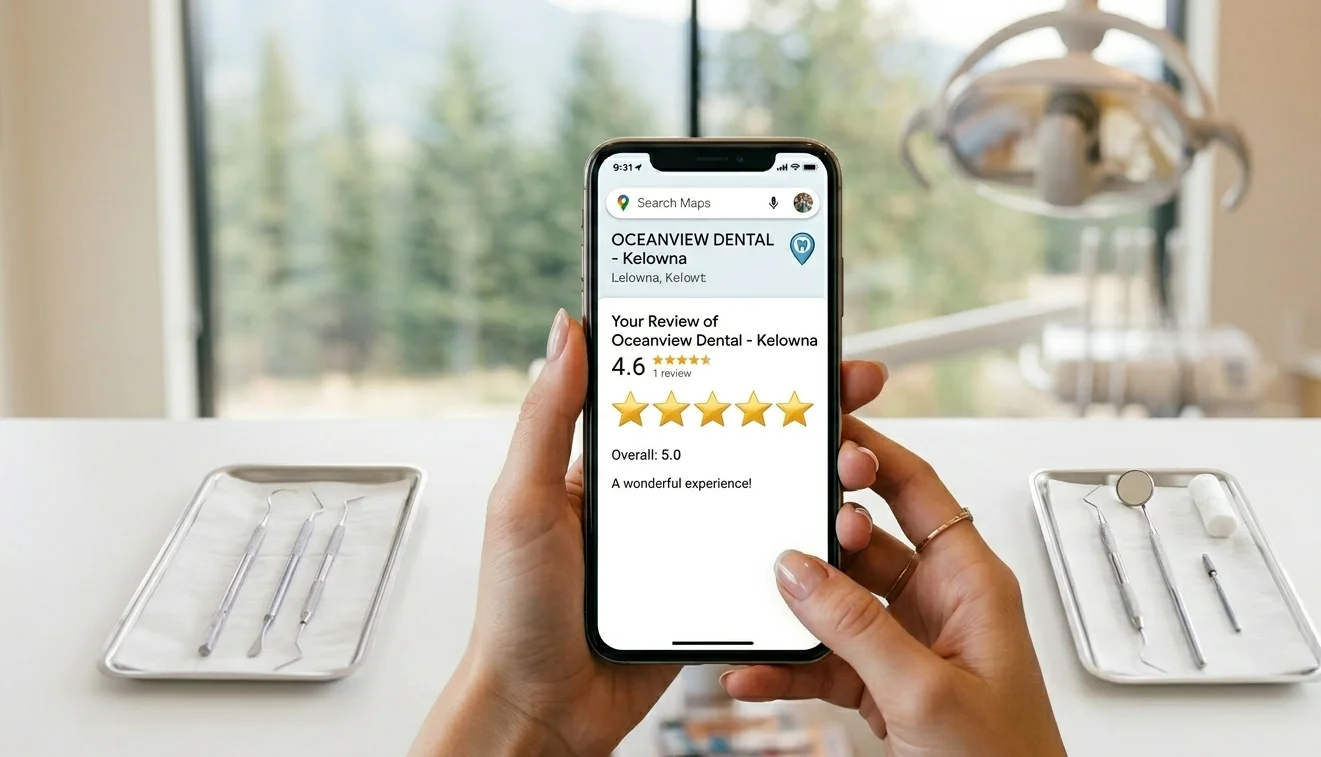
Reviews are the most influential factor in patient decision-making and a significant local ranking factor.
Getting More Reviews
- Ask at the right time: When patients express satisfaction after treatment
- Make it easy: Provide a direct link (found in your GBP dashboard)
- Follow up: Send a text or email 1-2 hours after appointment
- Train your team: Front desk should know how to ask naturally
- Display reminders: QR codes in reception, on receipts
Responding to Reviews
Positive Reviews:
- Respond within 24-48 hours
- Thank them by name
- Reference something specific from their visit
- Keep it genuine, not templated
Negative Reviews:
- Respond promptly and professionally
- Don't get defensive or argue
- Acknowledge their concern
- Offer to resolve offline
- Never disclose patient information (HIPAA)
Policy Warning: Never offer incentives for reviews. Don't ask only happy patients to review (review gating). Both violate Google's policies and can result in review removal or profile suspension.
Questions & Answers
The Q&A section appears on your GBP listing. Anyone can ask questions: and anyone can answer. If you don't manage this, random people might answer incorrectly.
Seed Your Own Q&A
Add common questions yourself and answer them. This ensures accurate information and helps with keywords.
Questions to seed:
- Do you accept new patients?
- What insurance do you accept?
- Do you offer emergency dental services?
- Is parking available?
- Do you have evening or weekend hours?
- Do you offer sedation dentistry?
- What languages do you speak?
- Is the office wheelchair accessible?
Monitor and Answer Quickly
When someone asks a new question, answer it promptly. Unanswered questions look bad, and someone else might answer incorrectly.
Common GBP Mistakes
1. Keyword Stuffing in Business Name
Adding "Best Dentist Calgary" to your business name violates guidelines. It can lead to suspension.
2. Inconsistent NAP
Your Name, Address, Phone must match exactly across all online listings. "Suite 101" vs "#101" vs "Unit 101" creates confusion for Google.
3. Ignoring Reviews
Unanswered reviews (especially negative ones) signal you don't care about patient feedback. Respond to every review.
4. Incomplete Profile
Missing services, empty description, few photos. Complete profiles rank higher and convert better.
5. Never Posting
An inactive GBP signals an inactive business. Post weekly to show you're open and engaged.
6. Wrong Categories
Missing relevant categories means missing relevant searches. Adding irrelevant categories wastes visibility on wrong audiences.
7. Using Stock Photos
Google can detect stock photos and may remove them. More importantly, patients can tell. Use real photos of your actual practice.
Frequently Asked Questions
1How do I claim my dental practice on Google?
Go to google.com/business, click "Manage now," and search for your practice. If it exists, click "Claim this business" and follow verification steps. If it doesn't exist, click "Add your business" to create a new listing. Verification typically requires a postcard, phone call, or video.
2How long does Google Business Profile verification take?
Postcard verification takes 5-14 days. Phone/SMS verification is instant. Video verification takes 1-3 days for review. In some cases, Google may require additional documentation that can extend the process to 2-3 weeks.
3What categories should I choose for my dental practice?
Choose "Dentist" as your primary category. Add secondary categories for specialties: "Cosmetic Dentist," "Pediatric Dentist," "Emergency Dental Service," "Dental Implants Provider," etc. Only add categories for services you actually offer.
4How often should I post on Google Business Profile?
Post at least once per week. Weekly posts show Google and patients that your practice is active. Posts expire after 7 days (except Events), so consistency matters. Mix content: promotions, tips, team updates, and seasonal content.
5Do Google reviews affect my dental practice ranking?
Yes, significantly. Review quantity, quality (star rating), and recency all affect your local ranking. Google confirms reviews are a ranking factor. More importantly, 71% of patients read reviews before choosing a dentist.
6Can I manage my dental Google Business Profile myself?
Yes, GBP is designed for business owners to manage. Basic tasks (posts, photos, responding to reviews) are straightforward. However, optimization for competitive rankings often benefits from professional help, especially for competitive markets.
7What photos should I add to my dental Google Business Profile?
Add: exterior building photo (helps patients find you), reception area, treatment rooms, equipment, team photos, and before/after results (with consent). Aim for 20+ photos total. Update quarterly with fresh images.
8How do I get more Google reviews for my dental practice?
Ask patients at the end of positive appointments. Send follow-up texts/emails with direct review links. Make it easy: provide QR codes in-office. Don't offer incentives (against policy). Train your team to ask naturally and consistently.
Need Help With Your Dental GBP?
A properly optimized Google Business Profile delivers more leads than almost any other marketing investment. If you don't have time to manage it yourself, we can help.
Our dental marketing packages include GBP setup, optimization, and ongoing management: weekly posts, review monitoring, and performance tracking.
Get GBP Management Quote →Related reading:
Last updated: March 2026

Written by
Sep Gaspari
Founder & Digital Marketing Strategist, Zio Advertising | Kelowna, BC
15+ years in digital marketing, Google Ads, and SEO. I've helped businesses across 12+ industries generate qualified leads and grow revenue through data-driven strategies. I don't just run campaigns—I obsess over results, test relentlessly, and treat your budget like it's my own.
Connect on LinkedIn→